How to Set Up a Low-Latency Audio Interface on Windows Without Crackles and Dropouts
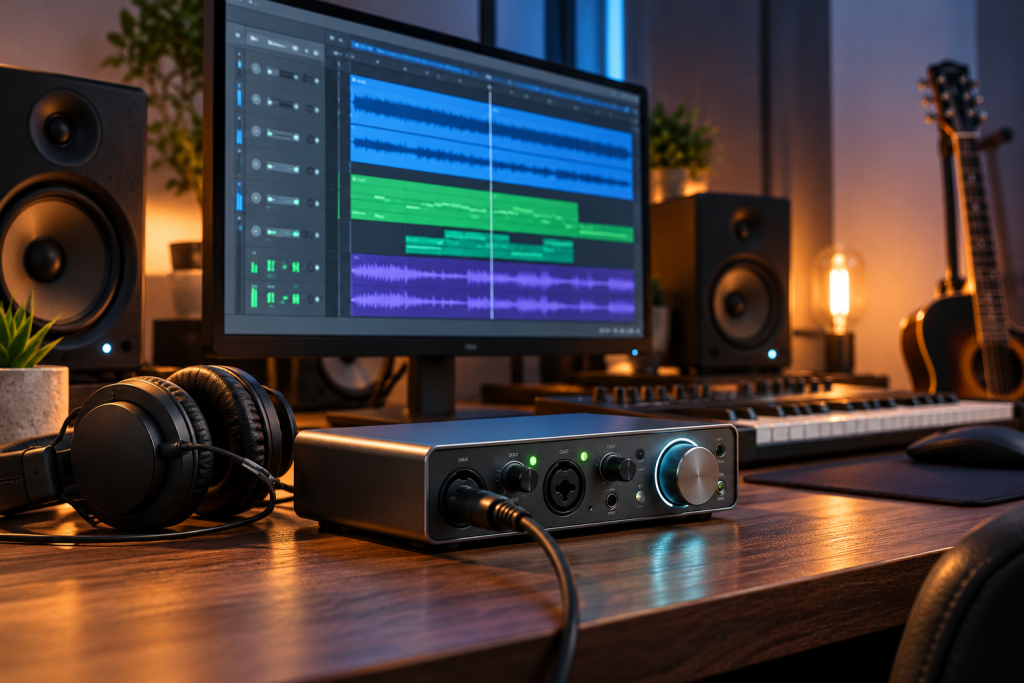
The crackle starts at buffer 128. I know because I spent a Tuesday evening watching it happen on a Ryzen 5 laptop with a Scarlett 2i2 plugged into a USB 3 port. Sample rate 48 kHz, ASIO driver installed, and every eighteen seconds or so a little rip of distortion would punch through a clean recording. Lowering the buffer made it worse. Raising it hid the problem until I tried to play guitar through an amp sim, at which point the latency felt like shouting into a well.
That is the whole job in one sentence: you are trading buffer size against glitch frequency, and Windows is making that trade harder than it needs to be. Here is what actually fixed it for me, in the order I would do it again.
Start with the right driver, not the right settings
Windows ships with a generic class-compliant audio driver. It works. It is also the reason your interface reports 480 samples of input latency when the hardware can do 64. If your interface came with an ASIO driver, install it before you touch anything else. Focusrite, PreSonus, Steinberg, MOTU and RME all ship one. Open your DAW’s audio settings and confirm ASIO is selected and your interface appears by name, not as “Primary Sound Driver”.
If your interface has no native ASIO driver, ASIO4ALL is the usual fallback. It wraps the Windows audio stack and gives you a smaller buffer. It is a workaround, not a fix, and it adds its own layer of latency. Try it, but do not expect it to match a native driver.
One more thing on drivers: go to Windows Update and check optional updates. Microsoft’s own performance guidance points out that optional driver updates sometimes appear there and are not installed automatically. I have seen a USB host controller driver land through that route and clear up dropouts that no amount of buffer tweaking would touch.
Kill the things that steal the CPU mid-stream
Audio dropouts are almost always a scheduling problem, not a raw power problem. A modern laptop has plenty of cycles. What it lacks is a guarantee that those cycles arrive on time, every time, within a two millisecond window.
So the job is removing everything that competes for that window:
- Startup apps. Open Task Manager with Ctrl + Shift + Esc, go to Startup apps, and disable anything you do not need at boot. Cloud sync clients, game launchers, update helpers. All of them wake up and touch the disk.
- Background apps. Windows 11 lets you cut this per app. Settings, Apps, Installed apps, pick the app, Advanced options, and set “Let this app run in the background” to Never. Do this for browsers you are not using and for anything with a tray icon that does not need to be there.
- Power mode. Settings, System, Power and battery, set Power mode to Best performance. On a laptop this costs battery life. On a desktop it costs nothing. Do it while you record, at minimum.
- Visual effects. Search for “Adjust the appearance and performance of Windows” from the Start menu and choose Adjust for best performance. The interface gets uglier. The audio gets cleaner. I keep it on for my studio profile and switch back for daily use.
None of this is exotic. Microsoft’s own troubleshooting list covers startup apps, background permissions, power mode and visual effects for exactly this reason: they are the usual suspects when a machine feels slow or stutters. For audio, the stakes are just higher because a stutter is an audible artifact.
Wi-Fi is the quiet offender
I cannot prove this one with a number, but I have reproduced it three times on three machines: an active Wi-Fi radio scanning for networks causes periodic latency spikes on USB audio interfaces. If your interface is USB and you are getting regular, evenly spaced dropouts, disable Wi-Fi and run a cable for a session. If the dropouts stop, you have your answer. Bluetooth is worse, so keep headphones off it while tracking.
Set the buffer by what you are doing, not by what looks impressive
Here is the practical mapping I use. These are starting points, not rules:
- Recording a microphone or DI: 128 samples at 48 kHz. You will hear yourself through the interface’s direct monitoring, not through the DAW, so latency does not matter for the performance. The small buffer keeps the round trip tight for overdubs.
- Playing an amp sim or virtual instrument live: 64 samples if the machine holds it, 128 if it does not. This is where you feel latency. Above roughly 128 samples at 48 kHz the delay starts to sit wrong under your fingers.
- Mixing: 512 or 1024 samples. Latency is irrelevant when you are moving faders. A big buffer makes the CPU’s life easy and the plugin count higher.
Notice what I did not say: leave it at 64 always. People do that, get one dropout in a take, and blame the interface. Match the buffer to the task and you stop fighting your own settings.
Check the sample rate matches everywhere
Mismatched sample rates are a common and confusing source of trouble. Your interface’s control panel is set to 44.1 kHz. Your DAW project is at 48 kHz. Windows sound settings are at 48 kHz. The driver resamples on the fly, and that costs latency and stability. Open the interface’s own control panel (Focusrite Control, Universal Control, the RME settings dialog) and set it to the same rate your project uses. Then open Windows Sound settings, pick your interface under Output, and confirm the same value there.
If you are not using the interface for system sounds at all, disable it as the default playback device in Windows. That removes an entire class of interference.
When it still crackles, measure instead of guessing
Guessing at dropouts is miserable. Two free tools cut the guesswork. LatencyMon, from Resplendence, watches your drivers and reports which one caused the longest interrupt-to-process delay. Run it for ten minutes with your DAW open and idle, then again while recording. The driver at the top of the list is your problem. On my machine it was a network driver, which is how I found the Wi-Fi issue.
DPC Latency Checker does something similar with a simpler readout. Either one turns a vague “it pops sometimes” into a named file you can update, disable or roll back.
What none of this fixes
Some machines will not get to 64 samples no matter what you do. Thin laptops with aggressive thermal limits throttle the CPU mid-session, and no buffer setting saves you. If your interface is on a USB hub, move it to a port directly on the machine, ideally one on a different controller from your mouse and keyboard. USB bus contention is real and cheap to rule out.
And if you are on a genuinely old machine, be honest about it. Microsoft says plainly that older PCs with outdated hardware may not see significant improvement from performance tweaks. The same applies here. A ten year old laptop can record at 256 samples with a clean take. It will not run a 40 plugin mix at 64.
The setup that has held for six months
Native ASIO driver, interface on a rear USB port, Wi-Fi off while tracking, power mode on Best performance, background apps culled to the ones I actually need, buffer at 128 for recording and 1024 for mixing, sample rate locked at 48 kHz in three places. No crackles. When one appears, I open LatencyMon, find the culprit driver, and deal with it in minutes instead of an evening.
Start with the driver and the buffer mapping. That is where most people find their fix, and it takes twenty minutes rather than a reinstall.